Kurrier 4.3: A More Capable Drive
Email rarely exists on its own. There are documents to review, images to share, and files that need to be available to the rest of the workspace. Kurrier 4.3 makes Drive more useful for that everyday work, with improved browsing, uploads, previews, and file sharing.
This release also adds more ways to personalize your workspace and use Kurrier in your preferred language.
Find what you need in Drive
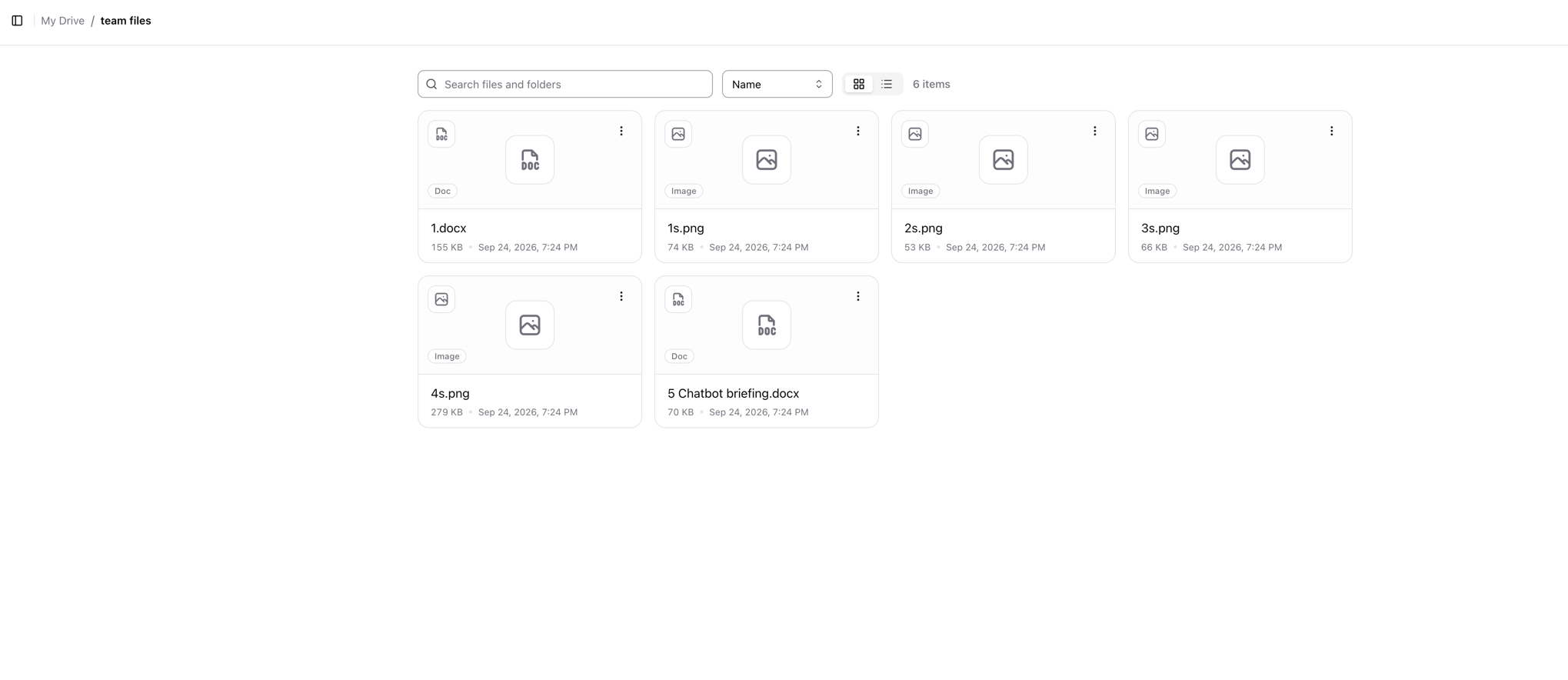
Drive starts with your configured storage volumes. Each volume is a named place for files; open one to browse its folders, create new folders, and upload or download files.
You can now switch between grid and list views. Grid view gives files more visual space, while list view makes it easier to scan names, sizes, and dates. Sort by name, newest, or largest, and use the search field to filter the files and folders you’re looking at.
Search currently works within the open folder. It’s particularly useful when you know roughly where a file lives but don’t want to scan every item in that folder.
Upload files without losing track of them
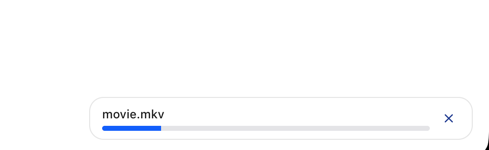
You can select New → Upload files or drag files from your computer directly into the open Drive folder. A progress panel shows each upload as it transfers, and you can cancel an upload from that panel.
The same New menu lets you create a folder at your current location, so you can organize files as you add them.
Preview before downloading
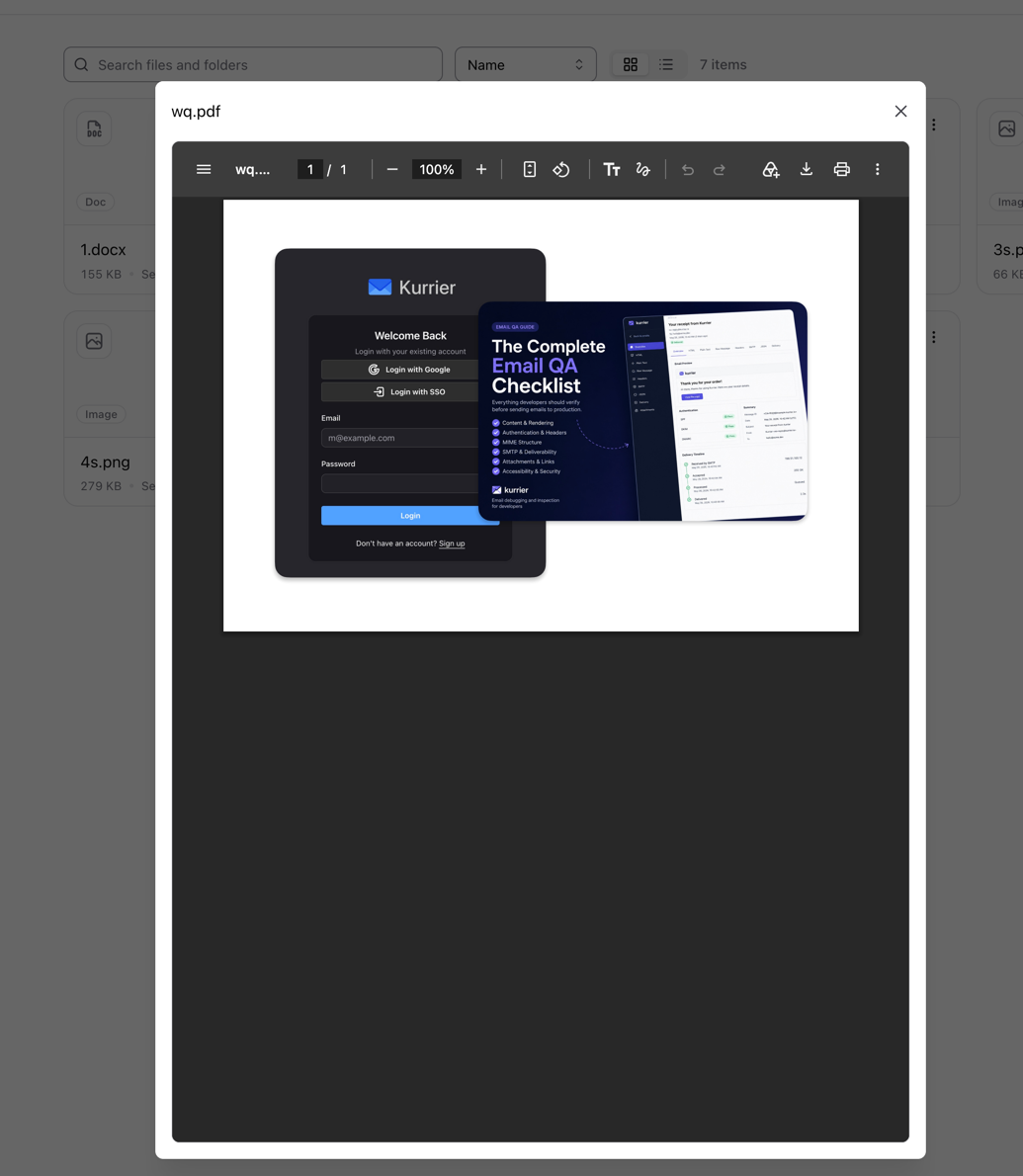
Click the name or icon of a supported file to open a preview in Kurrier. Drive supports PDFs and common browser image formats, including JPEG, PNG, GIF, and WebP. For other file types, you can still download the file from its menu.
That makes it quicker to check whether you’ve found the right attachment, scan a document, or look at an image without downloading every candidate first.
Share a file with an expiring link
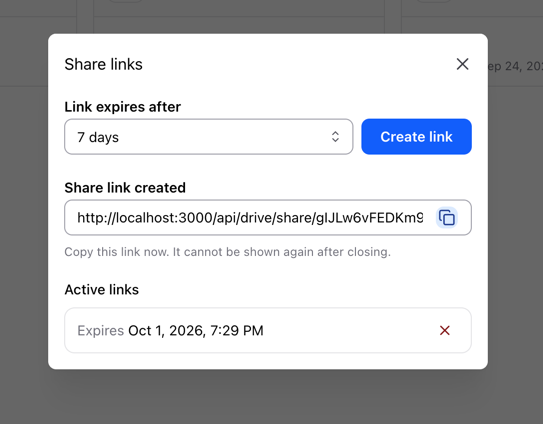
When someone needs a file, open its menu and choose Share. You can create a download link that expires after one hour, one day, or seven days. Copy it when it appears and send it to your recipient; they can download the file without signing in to Kurrier.
The link is shown when it’s created, so copy it before closing the dialog. You can return to the same dialog to see when active links expire or revoke one early.
Give your workspace its own identity
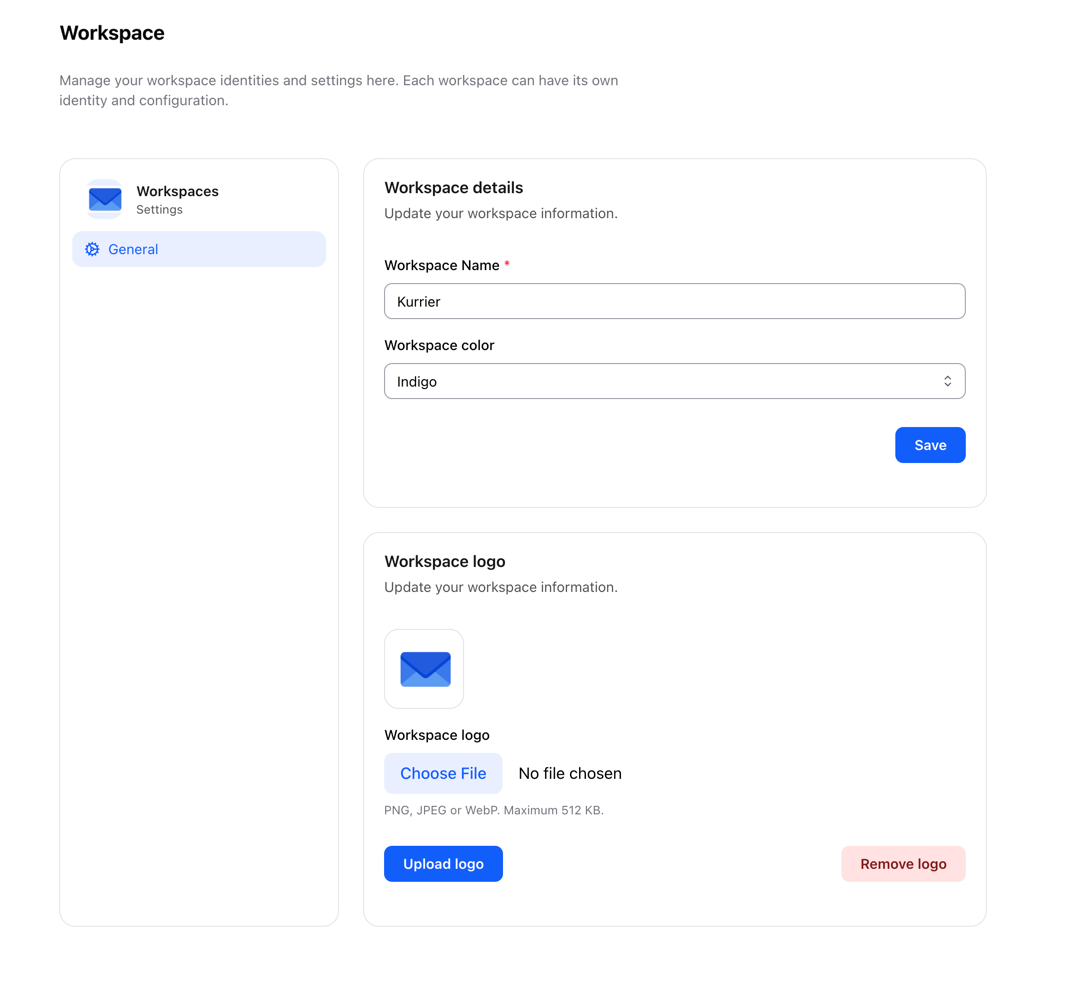
Kurrier 4.3 also gives workspace owners more control over how their workspace appears. Under Platform → Workspace → General, you can change its name, upload a logo, and choose an accent color: Neutral, Indigo, Violet, or Teal.
The workspace name helps members recognize where they’re working. A logo makes that recognition more immediate, especially when people belong to more than one workspace. The color changes the accent palette in supported parts of the interface; it is separate from the light and dark appearance setting.
Work in your language
Kurrier includes English, Korean, Polish, Brazilian Portuguese, and Russian interface translations. The language selector changes navigation, buttons, forms, and other translated parts of the app. It does not alter the contents of your messages, contacts, or files.
Kurrier is open source, and translations can improve with help from the people using them. If you spot wording that could be better, you can propose a change through the Kurrier GitHub repository.
Try the new release
Drive brings files into the same workspace where you already handle mail, calendars, and contacts. Version 4.3 makes those files easier to find and work with, while the new workspace and language settings make Kurrier feel more familiar to the people using it.
For step-by-step instructions, see the guides to Drive, workspace branding, and localization.