Drive Files, Search, and Sharing
Browse volumes, upload and preview files, and share them with expiring links in hosted Kurrier.
Drive Files, Search, and Sharing
Kurrier Drive organizes workspace files in storage volumes. You can upload files, create folders, preview supported formats, find items in the current folder, and make expiring download links.
Open a storage volume
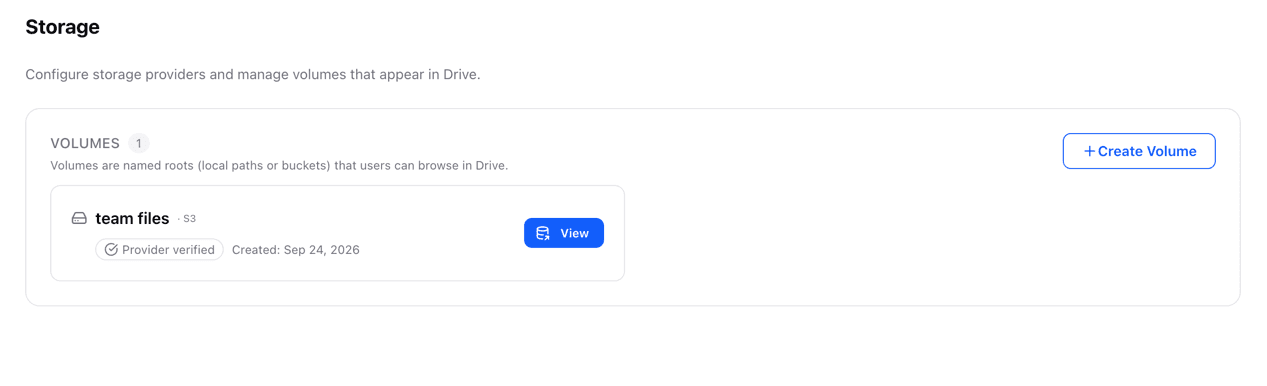
Open Drive and select a volume to browse its files. If no volumes are listed, a workspace administrator can configure a storage provider and create a volume under Platform → Storage. Your workspace's available features and storage configuration determine what you see.
Find and arrange files
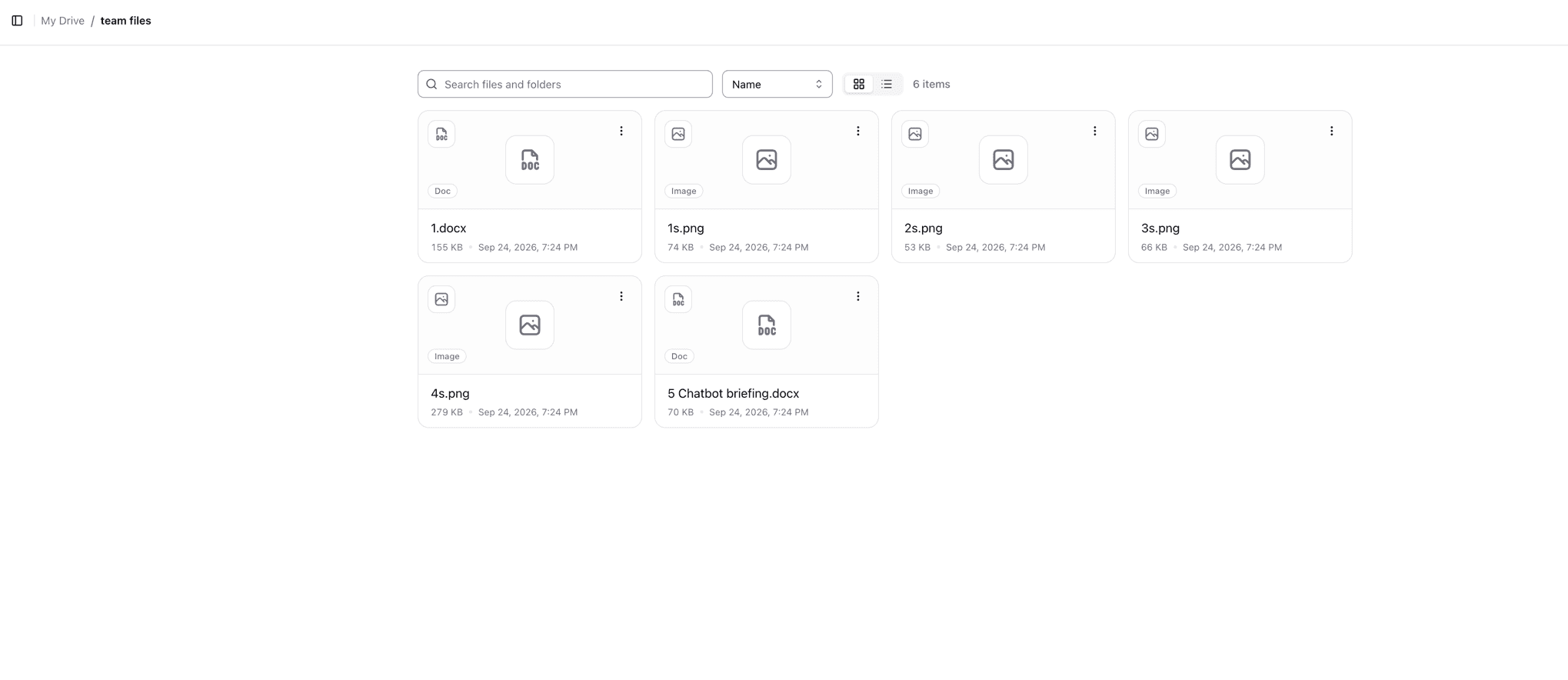
Open a folder to see its contents. Choose grid or list view using the controls above the files. Search files and folders filters the current folder; it is not a search across the entire volume.
Sort the visible items by Name, Newest, or Largest. Folders are shown before files.
Add files or folders
- Select New → Upload files to pick one or more files.
- Drop files from your computer onto the open Drive folder to upload them there.
- Select New → Create folder to add a folder at your current location.
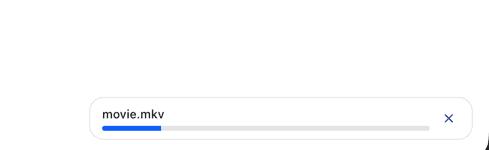
A progress panel shows uploads in progress and lets you cancel one. Keep the page open until your upload is complete.
Preview or download a file
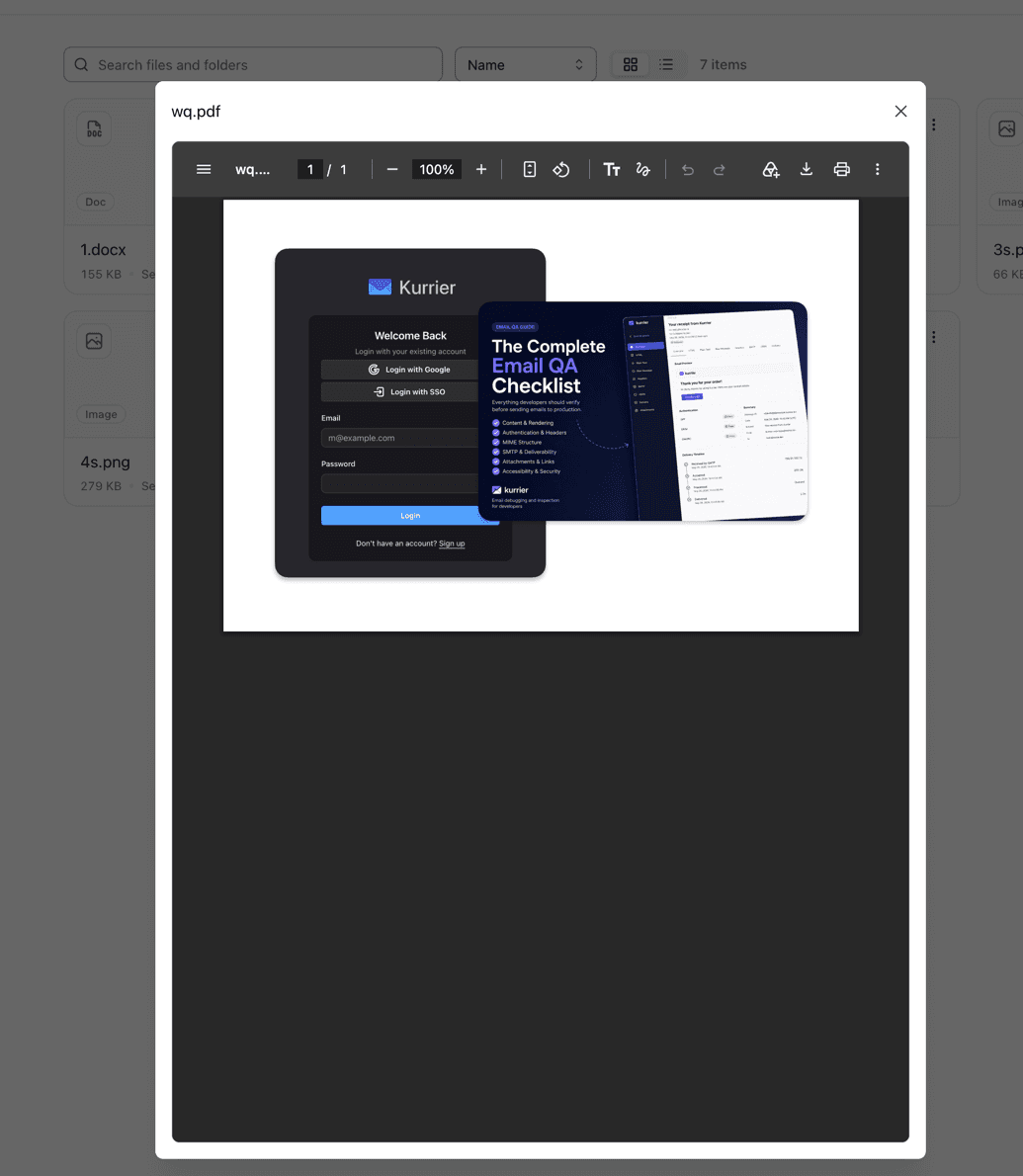
Select a supported file's icon or name to open a preview. PDF, JPEG, PNG, GIF, and WebP files can be previewed. If a file cannot be previewed, choose ⋮ → Download from its menu.
Create an expiring share link
- Open the file's ⋮ menu and select Share.
- Choose an expiration period: 1 hour, 1 day, or 7 days.
- Select Create link and copy the URL before closing the dialog.
- Share the URL with the person who needs the file.
You can see active links and their expiration dates in the same dialog. Select Revoke link to stop a link from issuing new downloads. The full URL cannot be shown again after you close the dialog, so create a new link if you did not save it.
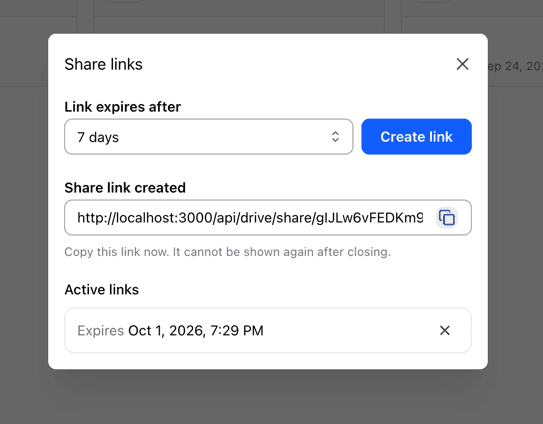
Anyone holding an active link can download the file without signing in; these links do not currently support passwords. A storage download URL issued just before revocation may continue working briefly.
Remove files or folders
Select ⋮ → Delete and confirm. Deleting a folder removes the files inside it as well. If you need help with an unexpected storage error, contact Kurrier Support and provide the volume name and affected file path without sharing private link tokens.