Workspace Name, Logo, and Color
Customize how your hosted Kurrier workspace appears to members.
Workspace Name, Logo, and Color
Your workspace name and logo make it easier for members to identify the right workspace. Its color sets the accent palette used by supported parts of the Kurrier interface.
Open Platform → Workspace → General. If you belong to more than one workspace, select the one you intend to edit first. Workspace settings are available to members with the appropriate permissions.
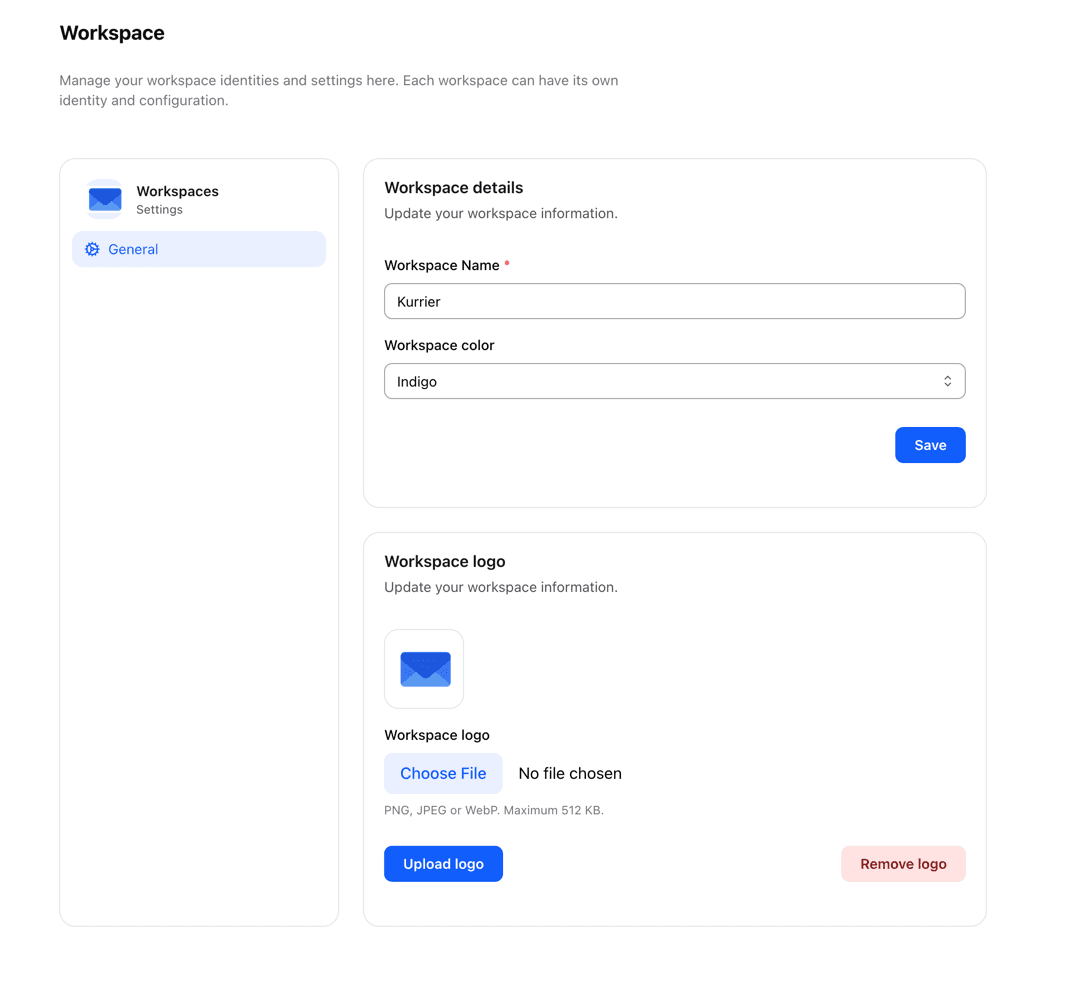
Update the name and color
- Enter a new Workspace Name, if needed.
- Choose a Workspace color: Neutral, Indigo, Violet, or Teal.
- Select Save.
The updated name appears in workspace navigation. The color changes the workspace accent palette; members can still use their own light, dark, or system appearance setting. Changing a workspace name does not rename its domains or email identities.
Add a workspace logo
- In Workspace logo, choose a PNG, JPEG, or WebP image. The maximum file size is 512 KB.
- Select Upload logo.
- Confirm that the preview shows the new image.
Members and supported shared workspace content will use this logo. Select Remove logo to remove it. Logo uploads and removals save separately from changes to the name and color.
If the image does not upload, check its format and file size. If you still need help, contact Kurrier Support with the workspace name and a screenshot of the error.